Parent mode: looking out, not spying
· 2 min read
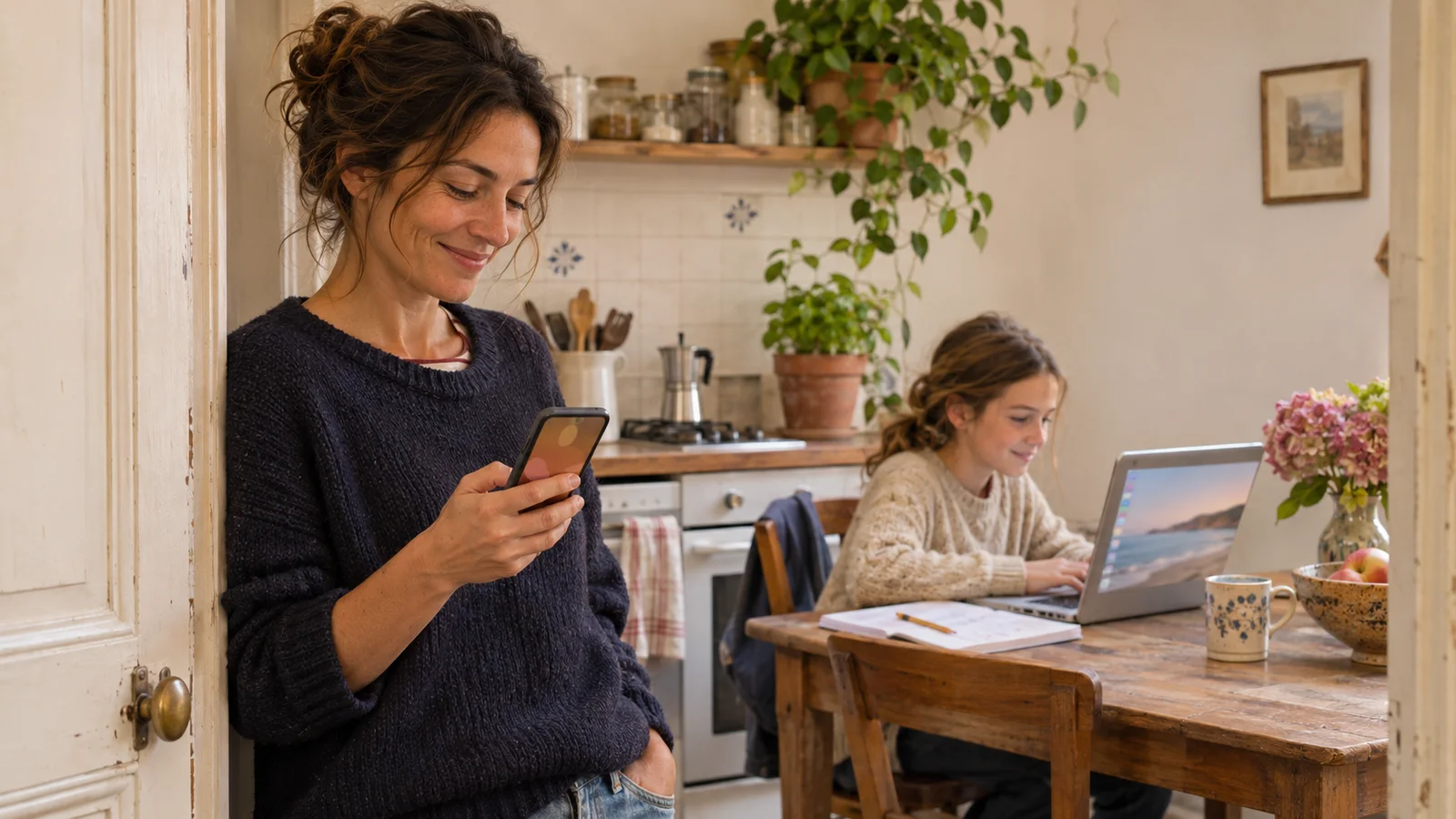
Looking out for a child at a computer doesn't mean reading everything over their shoulder. Yapuka's Parent mode keeps things simple: you set rules the child can see, and you keep control from your phone.
A phone paired once
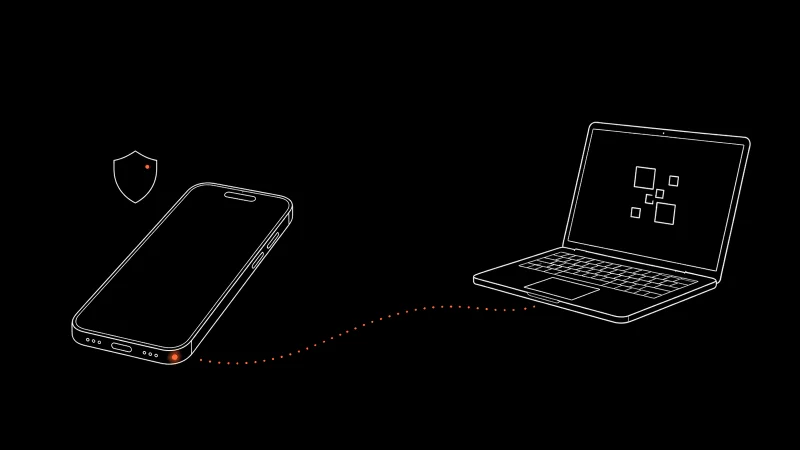
On the computer, open Me › Parents: a QR code appears. Scan it with your phone, once, and choose your parent code. No account: the phone talks directly to the computer over the home Wi-Fi, and nothing goes through a server. Link a phone. If the page won't open, this page explains it, with the steps for a Bbox.
What you can do from the phone
- Stop: the big button pauses the child's screen for 15 minutes, 30 minutes or until tomorrow, with your message (“Dinner!”). They can't close that screen. Stop
- Messages: “Dinner!” shows in Fidel, and you see “Seen at 18:42”. Messages
- Blocked sites: a list of sites blocked in every mode, subdomains included. Blocked sites
- Camera: one switch really cuts off the webcam, and an indicator always shows when it is on. Camera
- Safe mode: only the apps you pick, a web filter and a daily time limit. The system enforces it: a blocked app can't start.
- Potos and Actus: requests go through you, you approve from the phone. Ella and Potos
- Alerts, if you want them: pause, time up, blocked site, wrong parent code. They are off by default. Alerts
Looking out, not spying
That is the spirit of Parent mode: clear rules that can be seen, not a silent spy. The message arrives in Fidel, the pause screen is there, the webcam has its indicator.